Adverts
Learning how to move data from Android to iPhone is a hassle-free action, easily done with the help of an app called “Migrate to iOS”.
This application allows users to copy photos, messages, contacts and even applications that have versions compatible with the iOS system from an Android device.
Follow the steps below to transfer data from Android to iPhone!
Read too:
Step by step to send data from Android to iPhone
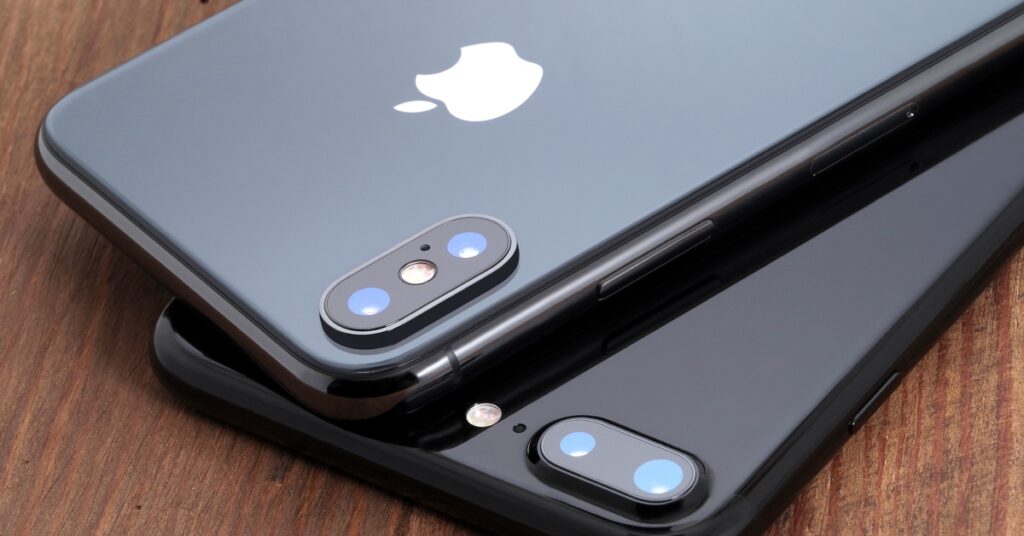
The “Migrate to iOS” app is an effective tool for performing data transfer, especially useful when purchasing a new iPhone or restoring an iPhone to factory settings.
To ensure a smooth transfer, it is important that both devices, Android and iPhone, are connected to the power outlet and to the same Wi-Fi network.
Also, make sure your iPhone has enough storage space to receive the files, as the transfer may be interrupted if there is no space available.
Here is the step-by-step guide to make the transfer:
Step 1. Set up your iPhone by following the on-screen instructions. Connect to a Wi-Fi network, set your screen unlock code, and set up Face ID if necessary.
Step 2. On the “Apps and Data” screen, select the “Migrate Data from Android” option and tap the QR Code located in the top right corner. Then choose the “Continue” option.
Step 3. The iPhone will generate a QR code. Open your Android device's camera and scan the code displayed on the iPhone screen.
Step 4. On your Android device, click “View in Play Store” and install the “Migrate to iOS” app.
Step 5. After installation, go to the app on your Android device.
Step 6. On the Privacy Policy screen, click “Accept”. Then press “Continue” and agree to the Terms and Conditions of Use by clicking “Accept” again.
Step 7. When asked about sending information about app usage, choose between “Send automatically” or “Do not send”.
Step 8. On the “Location access permission” screen, choose “Just this time”.
Step 9. Under “Find your code”, select “Continue”. The app will ask for a six-digit code.
Step 10. On the iPhone, on the screen with the QR Code, select “Ok” and then “Continue”. The application will generate a unique number. Enter this code on your Android.
Step 11. On the Android device, the “Transfer Data” screen will appear. At this point, choose the items you want to transfer. Click “Allow” and then “Continue”.
Step 12. The device will display a progress screen during the transfer (the time required depends on the amount of data to be transferred).
After the transfer is complete, click “OK” and return to your iPhone to complete the settings.
See how to transfer data from Android to iPhone with AnyTrans
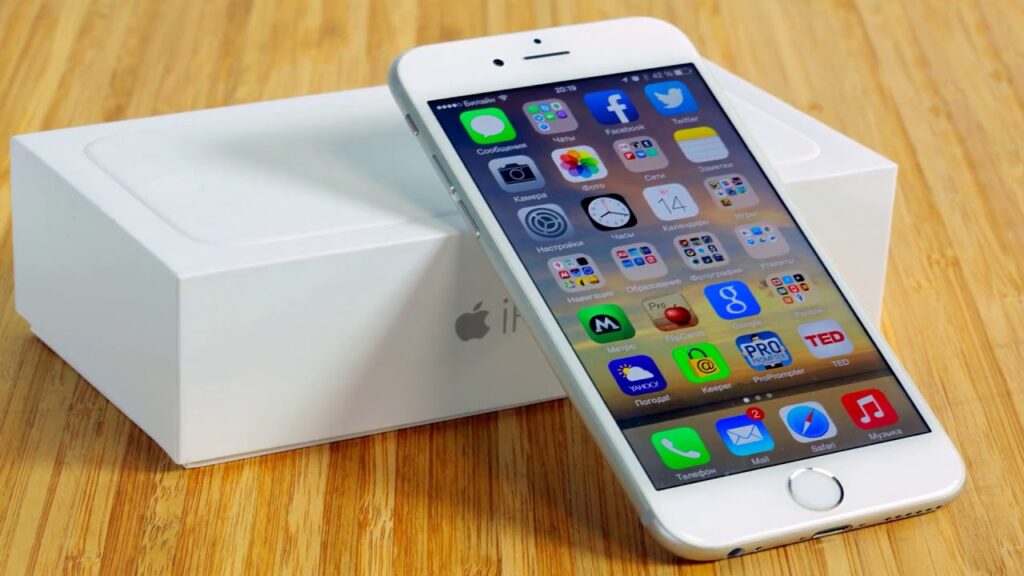
Learning how to move data from an Android cell phone to an iPhone can be a hassle-free task, thanks to an application called AnyTrans.
This application, compatible with macOS and Windows systems, allows users to quickly and securely transfer their files to Apple devices.
Differentiating itself from iTunes, AnyTrans offers a user-friendly drag-and-drop interface, simplifying the process of backing up music and transferring data between devices.
Furthermore, it guarantees data security, avoiding the risk of losing content when transferring files from a PC to an iPad, for example.
To transfer your files from Android phone to iPhone using AnyTrans, follow the step-by-step guide below:
1. Start by downloading AnyTrans on your computer and then proceed to install and open the application;
2. Connect both your Android cell phone and your iPhone to the computer using the appropriate USB cables;
3. Your iPhone will likely display an alert message asking if you trust this computer. Make sure to click “Trust”;
4. With AnyTrans open, locate and select the “Cell phone changer” option;
5. On the next screen, choose the “Cellular to iPhone” option and click “Migrate Now”;
6. Check that Android and iPhone are properly connected and click “Next”;
7. Finally, you can choose to check the “Select all” option to transfer all data or choose the specific categories you want to transfer to iPhone. After selection, click “Next” and then “Transfer”;
With these simple steps, you can transfer your data from Android to iPhone efficiently and securely using AnyTrans.
See also where to watch the best Turkish soap operas: here! Questions about moving data from Android to iPhone? Leave it below in the comments!
